How to set up ESLint and Prettier in React TypeScript 5 project? 2023
let's do step by step set up of ESLint and Prettier in React Typescript 5 project.

In this article, let's do step by step set up of ESLint and Prettier in React Typescript 5 project. By the end of this guide, you’ll have a clean and productive development environment that will boost your productivity and code quality.
Create React Project with Typescript Template:
Create React project with TypeScript Template
 npx create-react-app react-typescript-setup --template typescript

 //"react-typescript-setup" is the project name. You can user yours.
 // --template typescript - installs the Typescript
ESLint setup:
What is ESLint? ESLint is an open-source JavaScript linting utility
check more details https://eslint.org/
Install ESLint as a dev dependency
npm install eslint --save-devAfter installing ESLint, we need to create a configuration file with a below command
npx eslint --init
A series of questions will be asked. Answer them according to your project requirement. I am selecting the following options








The above steps create a .eslintrc.json in the root path of the project
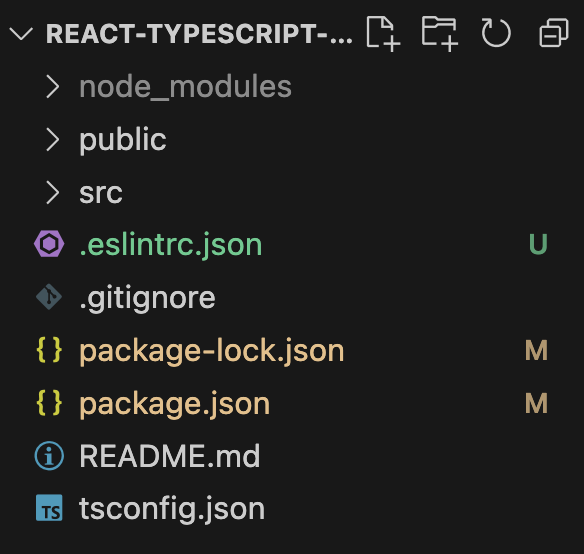
Contents of the .eslintrc.json would be like below
{
   "env":{
      "browser":true,
      "es2021":true
   },
   "extends":[
      "eslint:recommended",
      "plugin:@typescript-eslint/recommended",
      "plugin:react/recommended"
   ],
   "parser":"@typescript-eslint/parser",
   "parserOptions":{
      "ecmaFeatures":{
         "jsx":true
      },
      "ecmaVersion":"latest",
      "sourceType":"module"
   },
   "plugins":[
      "@typescript-eslint",
      "react"
   ],
   "rules":{

   }
}
To let ESLint correctly resolve TS imports/exports from Typescript and .tsx files, we would need to add the additional dependencies like eslint-plugin-import and eslint-import-resolver-typescript eslint-import-resolver-typescript eslint-plugin-import
Install eslint-import-resolver-typescript and eslint-plugin-import as development dependencies.
npm i eslint-import-resolver-typescript eslint-plugin-import --save-devTo make the resolver packages work properly add the below in the .eslintrc.json like below
 "settings":{
    "import/resolver":{
       "typescript":{}
    }
 }
If you haven’t already installed ESLint extension, add that to the VSCode
Prettier Setup:
What is Prettier? Prettier is an opinionated code formatter
check more details here: https://prettier.io/
To install Prettier and make it work with ESLint, the following packages need to be installed as dev dependencies. Installing the eslint-config-prettier and eslint-plugin-prettier packages will resolve any conflicts between Eslint and Prettier.
npm install --save-dev prettier eslint-config-prettier eslint-plugin-prettierAt the root of the project, create a prettier config file using the below command, this will create a .prettierrc file in the root path
touch .prettierrcAdd the required configurations in the config file like below
Check more configurations https://prettier.io/docs/en/options.html
{
   "printWidth":80,
   "tabWidth":2,
   "singleQuote":true,
   "semi":true,
   "trailingComma":"all"
}
Add “prettier” to the .eslintrc.json under the plugins and extends, the final JSON file would like below
 {
    "env":{
       "browser":true,
       "es2021":true
    },
    "extends":[
       "eslint:recommended",
       "plugin:@typescript-eslint/recommended",
       "plugin:react/recommended",
       "prettier"
    ],
    "parser":"@typescript-eslint/parser",
    "parserOptions":{
       "ecmaVersion":"latest",
       "ecmaFeatures":{
          "jsx":true
       },
       "sourceType":"module"
    },
    "plugins":[
       "@typescript-eslint",
       "react",
       "prettier"
    ],
    "rules":{

    },
    "settings":{
       "import/resolver":{
          "typescript":{

          }
       }
    }
 }
Install the Prettier VSCode extension if you haven’t installed it already
The Above steps will configure the Prettier and ESLint tools in React Typescript project. Happy Coding!


